TurboImageHost 다운로더 크롬 버전: 이미지를 쉽게 다운로드하는 방법

Finding an interesting image on TurboImageHost is easy, but downloading multiple images efficiently can be a different story. Chrome lets you save pictures directly, while developer tools, browser extensions, and online image downloaders provide additional options. However, each method works differently and may have limitations when dealing with image-heavy pages or large collections.
In this guide, we’ll explore several practical ways to download TurboImageHost images in Chrome, from simple browser features to dedicated online tools. We’ll also introduce a professional bulk image downloader that can help you detect, filter, and download large numbers of images more efficiently.
1. What Is TurboImageHost?
TurboImageHost is an online image-hosting platform that allows images to be uploaded and shared through the web. Users can access images through individual pages or galleries, making the service useful for viewing and sharing image collections.
However, image-hosting pages can contain more than just the pictures you’re interested in. A page may include thumbnails, previews, icons, advertisements, and other graphical elements. When you need many images, manually identifying and saving each file can take considerable time.
That’s why choosing the right downloader depends largely on the number of images you need and how much control you want over the download process.
2. Full List of TurboImageHost Downloaders in Chrome
Chrome provides several options for downloading images from TurboImageHost. Here are the most common methods.
2.1 Save Image As
The easiest way to save an image from TurboImageHost is Chrome’s built-in 다른 이름으로 이미지 저장 function. No extension or additional software is required, making it ideal for downloading one or a few images.
How to use Save Image As:
- Open the TurboImageHost webpage in Chrome.
- Find the TurboImageHost image you want to save, right-click the image and select 다른 이름으로 이미지 저장 .
- Choose a destination folder and click 구하다 .
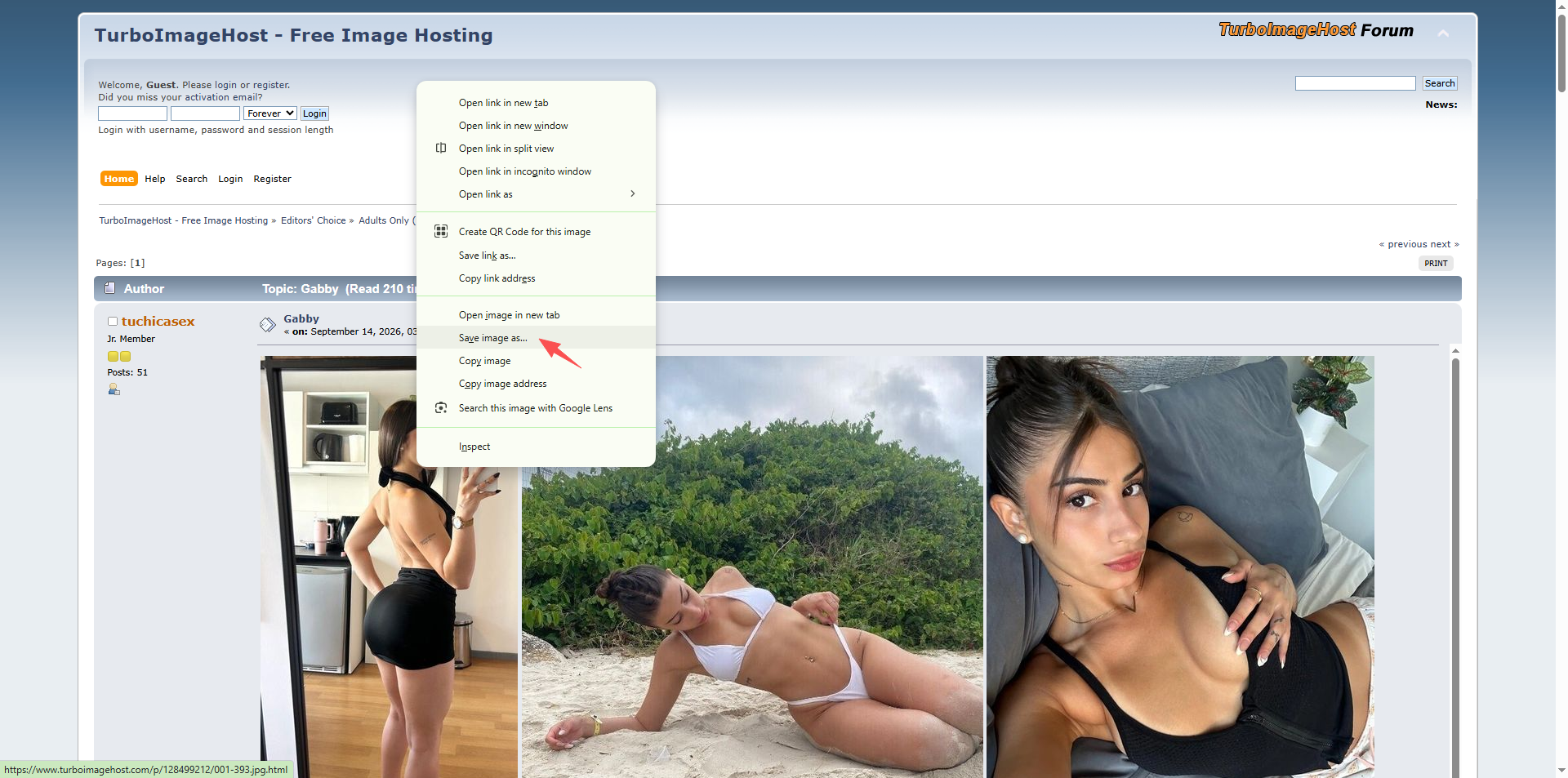
This method is quick and straightforward, but it becomes inconvenient when you need to download many pictures because each image has to be saved separately.
2.2 Chrome Developer Tools
Chrome Developer Tools provides another way to locate image files on a webpage. This method can be useful when the normal right-click download option doesn’t give you the image file you need.
단계:
- Open the TurboImageHost page in Chrome, right-click anywhere on the page and select 검사 .
- 열기 강요 또는 회로망 panel and look for image resources such as JPG, PNG, GIF, or WebP files.
- Identify the relevant image URL, open the image URL in a new browser tab, thenn right-click the image and save it.
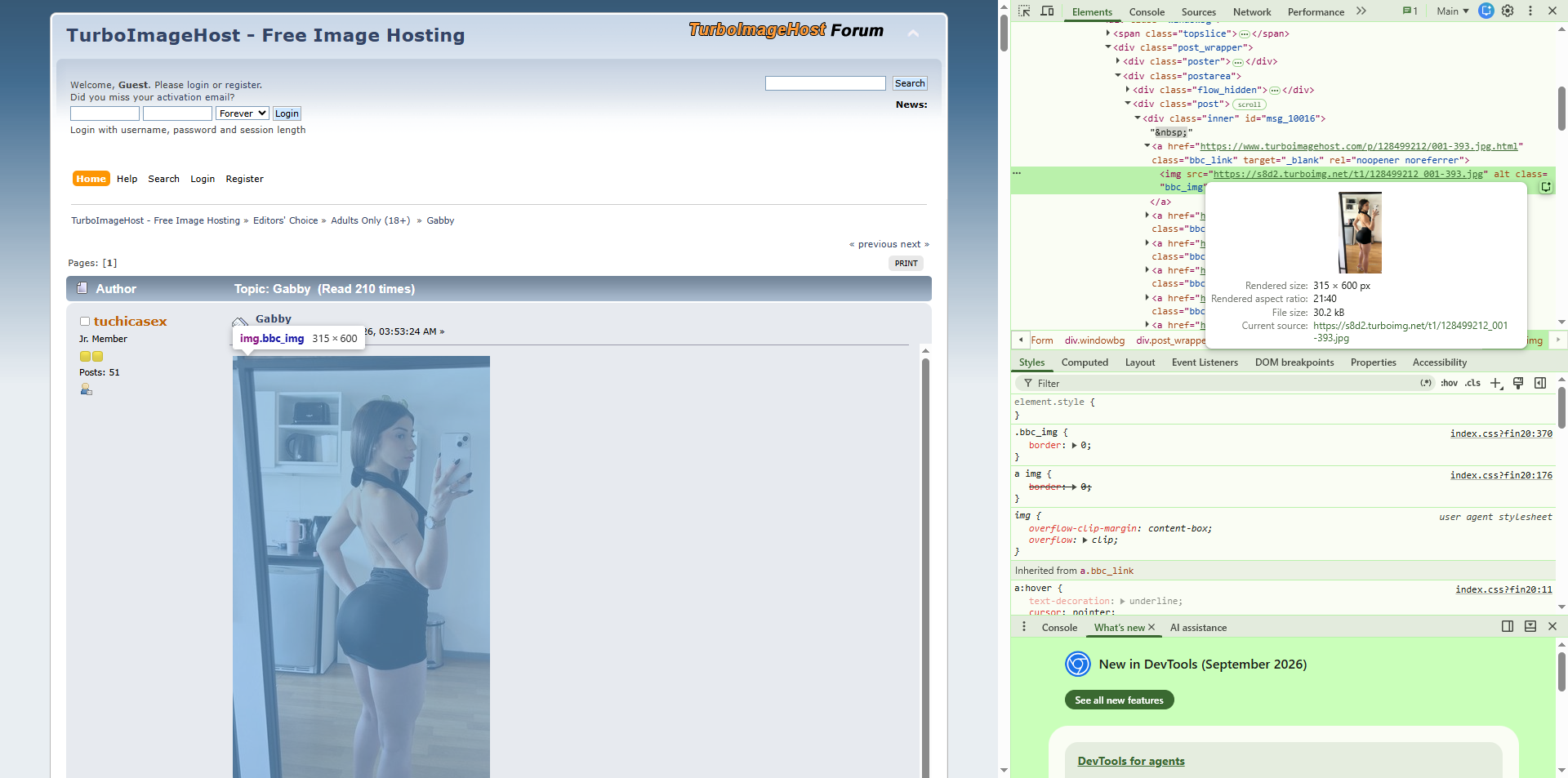
Developer Tools gives you greater visibility into webpage resources, but it can be confusing for users who aren’t familiar with HTML, network requests, or browser developer tools. It is also not practical for downloading a large number of images individually.
2.3 Image Downloader Extensions
Chrome extensions can make downloading multiple images from a webpage easier. Image downloader extensions typically scan the current page, detect available images, and display them in a list or grid.
단계:
- Install a reputable image downloader extension like Imageye from the Chrome Web Store.
- Open the TurboImageHost page, click the extension icon and let the extension scan the webpage.
- Review and choose the detected images, then download them from TurboImageHost to your computer.
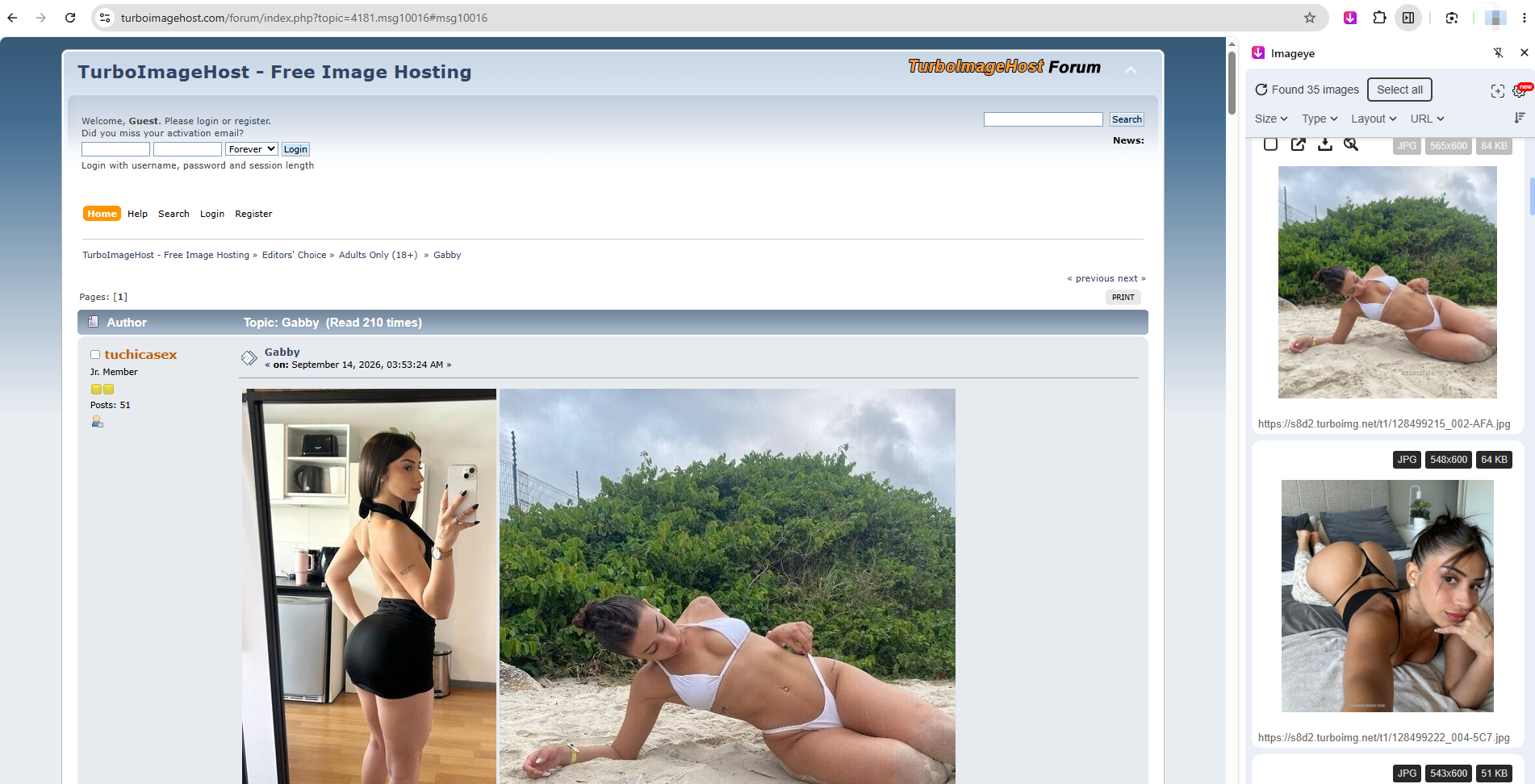
Some extensions provide additional features such as filtering images by dimensions or file type, previewing detected images, or selecting multiple files at once.
2.4 Online Image Downloaders
Another option is to use an online image downloader. These web-based tools generally allow you to enter a webpage URL, analyze the page, and display images that can potentially be downloaded.
단계:
- Copy the TurboImageHost webpage URL, open an online image downloader like Image Extractor and paste the URL into the provided field.
- Start the analysis, then review the detected images, select and download the images you need.
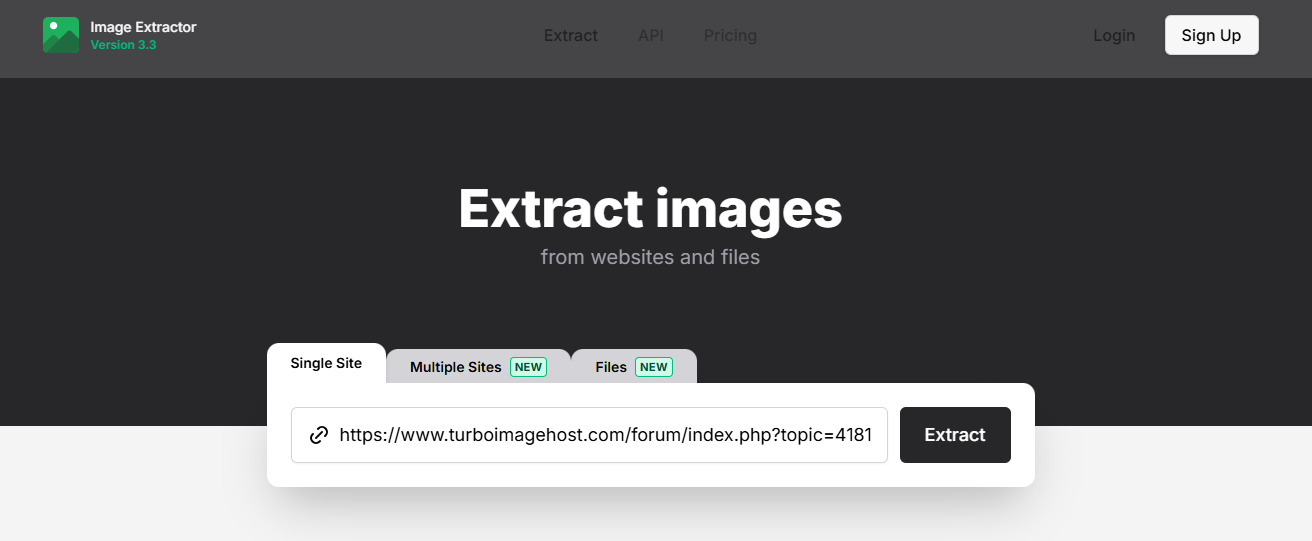
Online downloaders are convenient because they don’t require software installation. They can be useful when you only need to download a few images occasionally.
However, online tools can have limitations. Some may restrict the number of images you can download, have difficulty processing certain webpages, or offer fewer filtering and organization features. Uploading or submitting webpage URLs to an unfamiliar service may also raise privacy considerations.
3. Use a More Professional Bulk Image Downloader – Imaget Instead
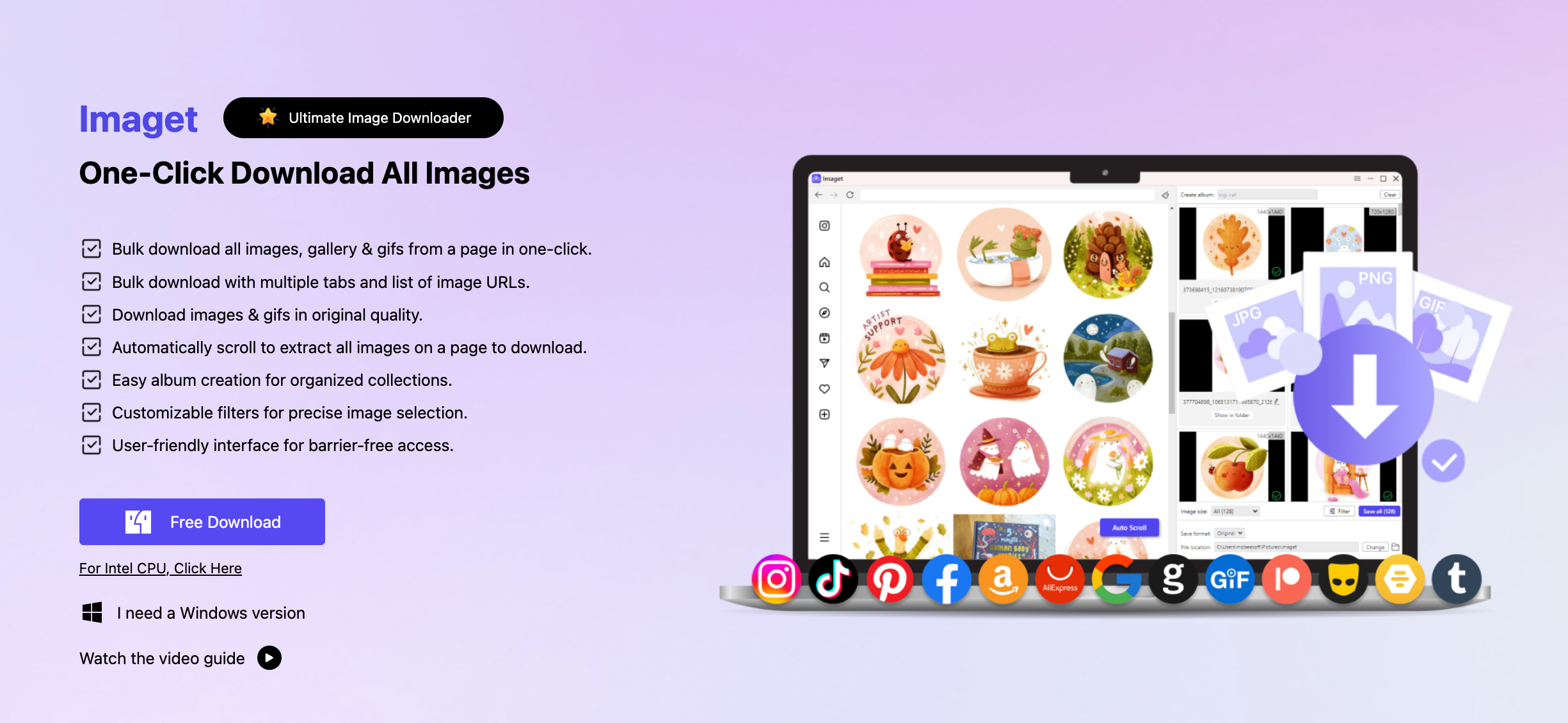
If you regularly download large numbers of images, Imaget provides a more complete alternative to Chrome-based methods. Rather than relying on individual browser downloads, extensions, or online services, Imaget is designed specifically for bulk image downloading.
주요 특징 Imaget :
- Download multiple images simultaneously instead of saving them one by one.
- Scan webpages and identify available images.
- Filter results based on image format, dimensions, or size.
- Support common formats such as JPG, PNG, GIF, WebP, and SVG.
- Work with image URLs and URL lists for more efficient downloads.
- Download available images at their original or highest available quality where supported.
How to Download TurboImageHost Images with Imaget :
- 다운로드 및 설치 Imaget 너의 Windows 또는 Mac 컴퓨터를 켜고 프로그램을 실행하세요.
- Copy the URLs of the TurboImageHost pages containing the images you want and add them to Imaget .
- 허락하다 Imaget scan the webpages and identify available images.
- Preview the detected images and use the filtering options to remove unwanted files, then click Save all to download all chosen images.
4. 결론
There are several ways to download images from TurboImageHost using Chrome. Save Image As is the simplest choice for individual pictures, while Chrome Developer Tools can help locate image resources manually. Image downloader extensions offer a more convenient way to select multiple images, and online image downloaders provide a browser-based option without requiring installation.
However, these methods can become inefficient when you’re working with large image collections. If bulk downloading is part of your regular workflow, Imaget offers a more professional solution. Its image detection, previewing, filtering, batch downloading, URL management, and renaming features make it easier to handle large collections efficiently.
For users who want more than basic browser downloads, Imaget is a strong choice for downloading and organizing TurboImageHost images in bulk.